How to access your server files and folders
Login to the Control Panel and login with your credentials.
Click on ‘Game Services’

Click on your '7 Days to Die Service'

There is a couple ways you can access your server files:
You can access your server files using an FTP or SFTP connection
or
You can access your server files by pressing the 'File Manager' on your control panel home page.
Accessing Server files using SFTP/FTP
On the homepage of your server you will see the SFTP details for your server
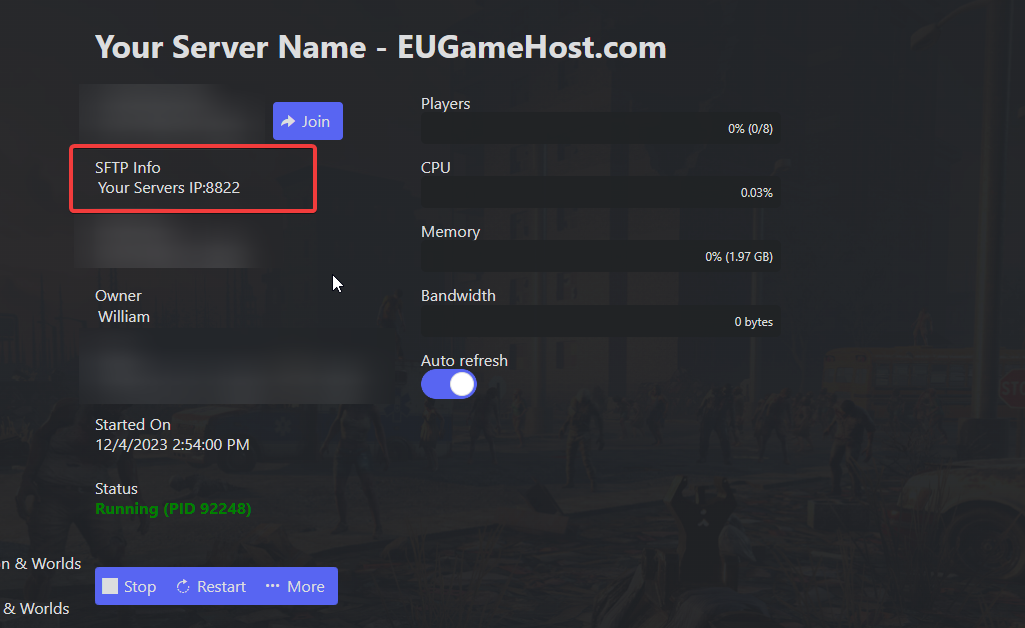
(If you want to use FTP instead of SFTP, the port is 8821 instead of 8822)
We recommended using FileZilla for your SFTP/FTP Client but you can use whatever you like.
You can download it here.
Next open your SFTP/FTP Client, in our example we'll be using FileZilla.
Enter in the sftp://Servers IP on the left, Your TCAdmin User and Password (the ones you use to login) and put the SFTP port of 8822 in the far right.
(If you using FTP, you change the sftp:// to ftp:// and change the port to 8821)

Then just hit "Quickconnect"
You will see your Servers directory popup, press on it and you'll have access to your files!
You can download/upload whatever you want.
The upload of some file extensions like (.DLL / .EXE / .BAT) it's forbidden for security.
if you need to upload any of that files just contact our support.