How to enable & use Telnet
Login to the Control Panel and login with your credentials.
Click on ‘Game Services’

Click on your '7 Days to Die Service'

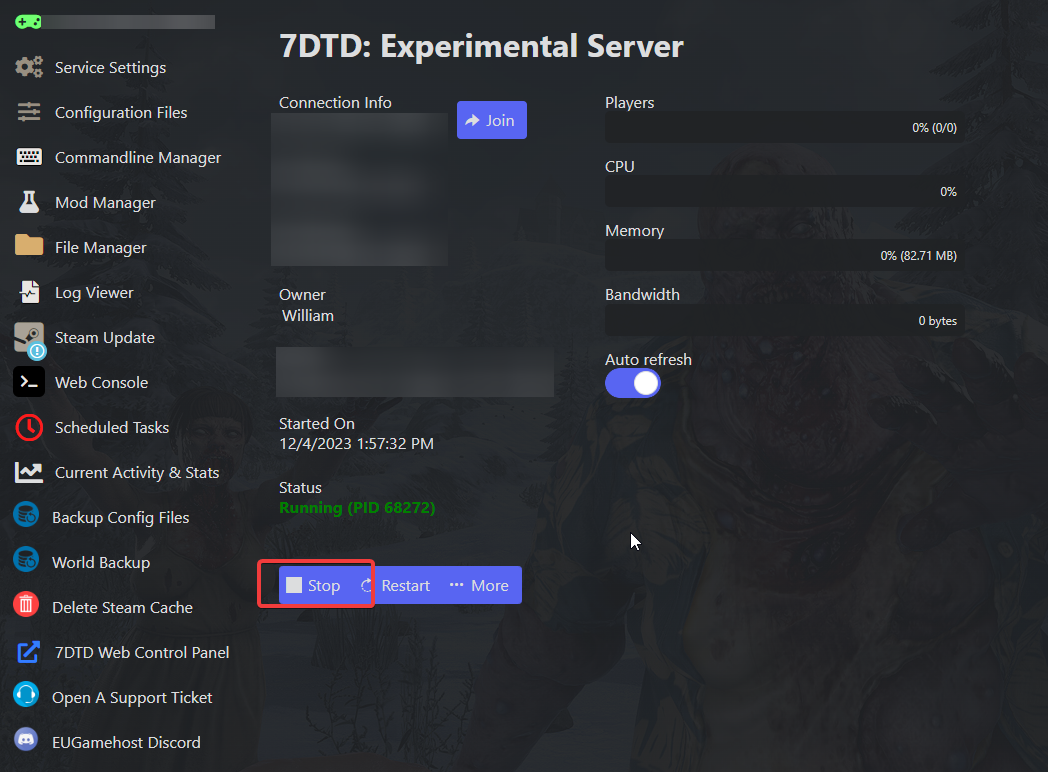
Click on the ‘Stop’ Button
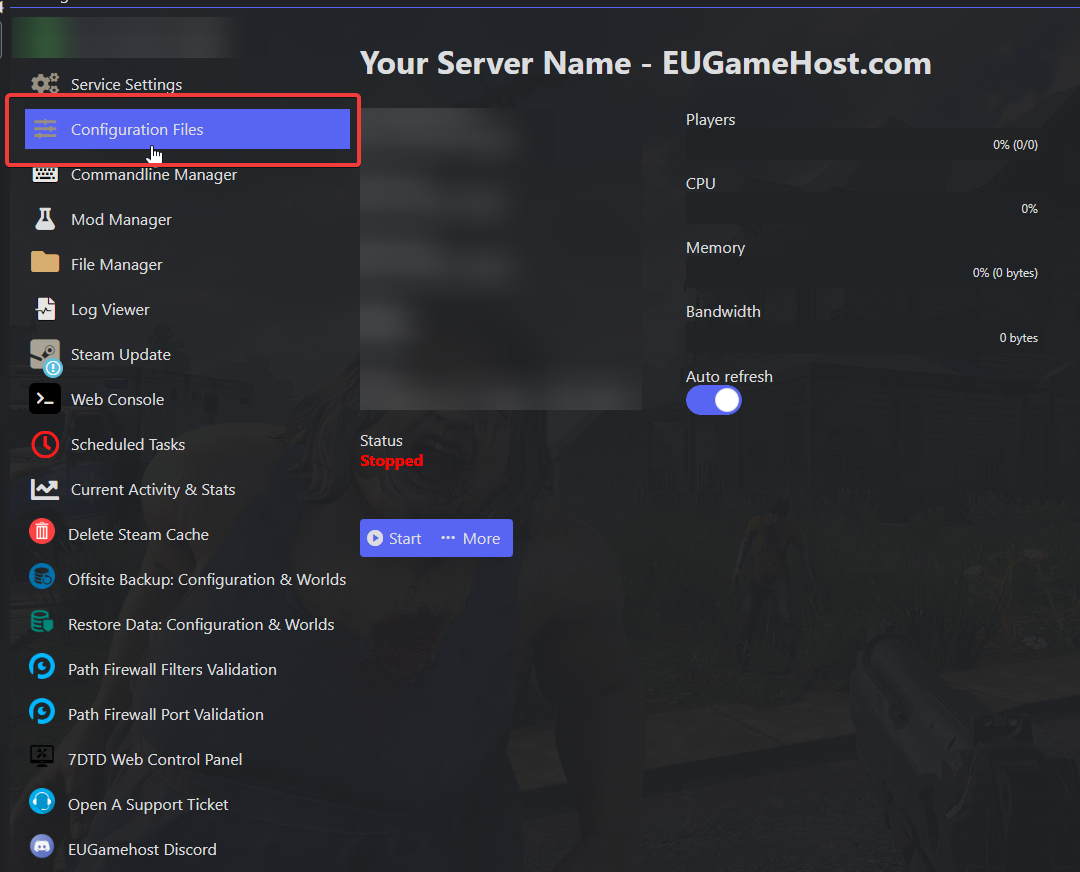
Click on 'Configuration Files'
Click on 'Text Editor' on the 'serverconfigmain.xml'

Locate the 'Telnet' part of the configuration file.
You can search for it by hitting "Search" at the top or press CTRL + F
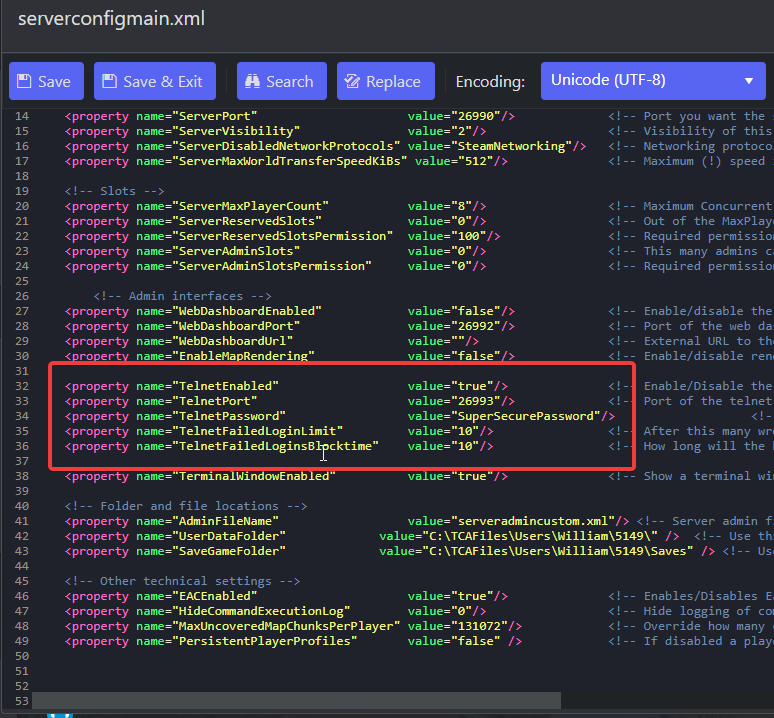
Change the 'TelnetEnabled' from 'false' to 'true'
The 'TelnetPort' will be defined by default, if it isn't please contact support to get this.
Set the "TelnetPassword" to something secure to prevent unauthorized accessed
You can leave both TelnetFailedLoginLimit & TelnetFailedLoginsBlocktime as default.
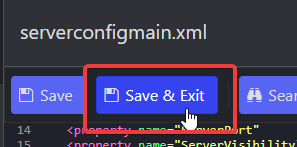
Once you've configured what you need to, you can just press "Save & Exit"
Click back onto your server, and then press the ‘Start’ Button

You've successfully setup Telet!
In the next part of this guide we'll cover how you connect to Telnet now.
How to connect to Telnet using PUTTY
To connect to your server via Telnet you first need to download PUTTY.
You can get it here
Open PUTTY, you will see the following.
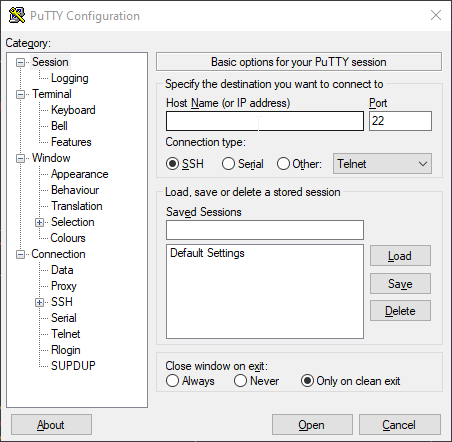
In the 'Host Name (or IP address)' field put in the IP of your service (excluding port)
In the 'Port' section enter the Telnet port.
You can find this in the configuration file (Refer to start of the guide)
Change the 'Connection Type' from 'SSH' to 'Other' and change 'Telnet' to 'Raw' on the dropdown menu.
(Shown Below)
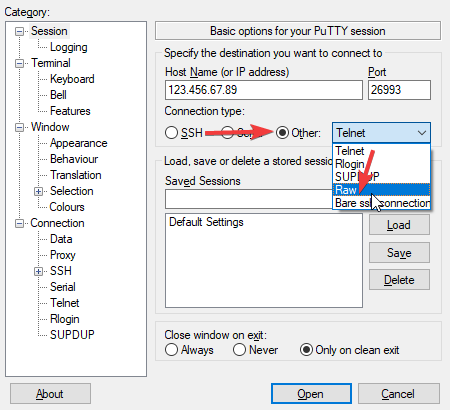
Once the details are entered, press 'Open' at the bottom right.
You should see the following:
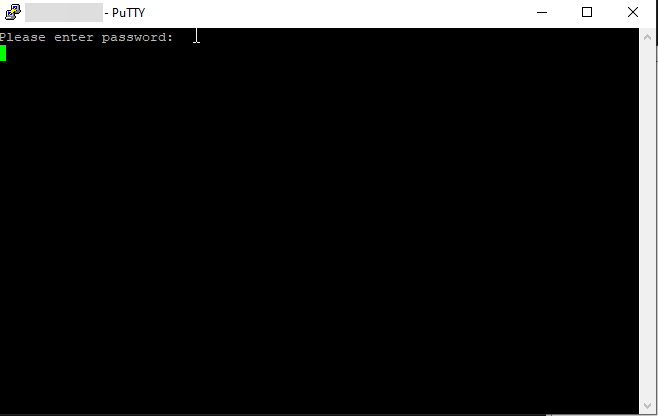
Here just enter the password you had configured in the configuration file.
Once you have logged in successfully you will see the following:
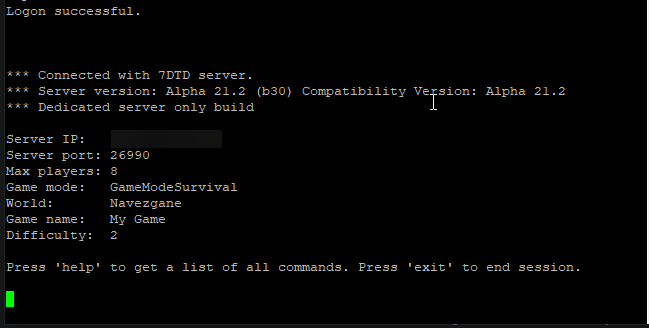
That's All! You now have Telnet access to your 7D2D server.