Locating Your serverconfig.xml File
You can easily find your serverconfigmain.xml file within our EUGameHost Game Panel.
Once you've logged in, click on your Game Service and click the Configuration Files button.

By default, there will only be two files here.
First is serveradmincustom.xml and second up is serverconfigmain.xml
Click the 'Text Editor' button to the far right of the serverconfigmain.xml file.
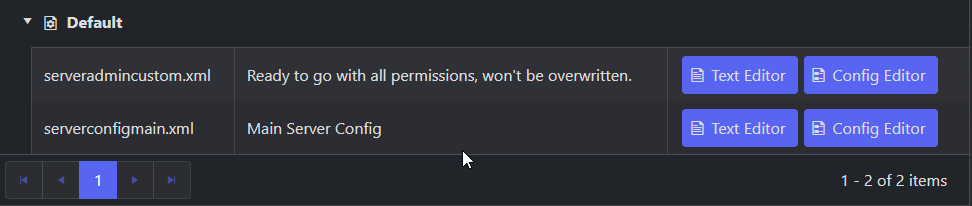
open up the file within your panel using the text editor.
Alternatively, you can also access this file via FTP or SFTP and edit it using a text editor of your choice.
How To Edit Values
Once inside the editor, it is vital to edit everything properly.
One out-of-place character or invalid value can cause significant errors with your server.
Let's take a look at an example and break it down before we begin:
<property name="ExampleMode" value="1"/> <!-- 1 = Easy, 2 = Normal, 3 = Hard -->
'Property Name' will refer to the setting you are editing.
These are self-explanatory, and you will not change these for the most part.
'Value' will be the setting we do edit. This will be in the form of a number, a true/false statement, or a string.
To the far right of each line is a comment.
This will often explain the type of value you need to enter to achieve your desired setting.
In this example, the value '1' will enable Easy mode.
'2' will enable Normal mode, and '3' will enable Hard mode.
After changing values, you must click the Save button in the top left corner
and restart your server for any changes to take effect.
Handy Tip: Use Ctrl + F to open a search console, type the name of the property you're looking for, and press enter.
And you'll jump straight to the line you need to edit!
Clean File
If you make a mistake when editing your serverconfigmain.xml file and run into an error.
Don't panic. We have you covered.
Click Here to copy and paste in a fresh file to reset your server configs without doing a fresh install of your server.
This way, you will not lose any other edited files or installed mods and plugins.
Change Your Server Name & Description
You can edit the following properties with your serverconfigmain.xml file to change the info displayed on the game's master server list.
Give yourself a good name and description to help bring more players to your server.
You can also add a link to your website here!
| Property Name | Default Value | Notes |
| ServerName | "Insert Name -EUGameHost" | Enter whatever you'd like the server to be named within the quotes. |
| ServerDescription | "A 7 Days to Die server" | Enter your server's description within the quotes. |
| ServerWebsiteURL | "https://eugamehost.com" | Enter your website's URL within the quotes. Don't have a website and want one? Ask us about web hosting! |
Make Your Server Private
Don't want randoms joining your server? We got you covered.
You can change the following property in your serverconfigmain.xml file to remove your server from the game's master server list.
Only people with a direct connection will be able to join you.
If you still want your server to be displayed on the master list, but only want certain players to be able to join, you can also create a password.
Any user who attempts to join will have to enter this before connecting.
| Property Name | Default Value | Notes |
| ServerIsPublic | true | Change this to false to hide your server from the master list. You can change this back at any point. |
| ServerPassword | "" (Blank Value) | Enter a password for your server within the quotes. This is case-sensitive! |
Use Randomly Generated Maps
Along with the game's original Navezgane map, you can also choose to use a randomly generated map within your serverconfigmain.xml file. You will also be able to edit the name of the map, which will act as a seed, meaning you can create a replica later by entering the same value.
| Property Name | Default Value | Notes |
| GameWorld | Navezgane | Use "RWG" to use a randomly generated map. "Navezgane" will use the default game map. Do note world size must be a multiple of 1024 and no larger than 16384 |
| GameName | My Game | Enter anything within the quotes. Each value will act as a seed. |
General Game Settings
Here you can find all of the important game settings you may want to change. These range from difficulty settings to enemy and PvP options.
Please look below to find out how to customize them inside your serverconfigmain.xml file.
| Property Name | Default Value | Notes |
| GameDifficulty | 2 | The overall difficulty is based on a scale from 0 to 5. With 0 being the easiest and 5 being the hardest. You will have to tinker with this setting to find a good balance for your server. |
| ZombiesRun | 0 | 0 is the default game zombie walk/run setting. If you want them never to run, use 1. To make zombies always run, use 2. |
| DayNightLength | 60 | This value is the number of real-time minutes it takes to cycle through an in-game day. By default, it is 60, or 1 actual hour per in-game day. |
| DayLightLength | 18 | This value is the number of in-game hours the sun shines per day. So, for example, changing it to "5" would mean there are only 5 in-game hours of light |
| PlayerKillingMode | 3 |
You have 4 different PvP options here. By default, your server will be set to All PvP. 0 - No PvP 1 - Allies only PvP 2 - Strangers only PvP 3 - All PvP |
| DropOnDeath | 0 |
This value determines what players will drop on death. By default, everything is dropped, but you have 4 options. 0 - Everything drops 1 - Only your toolbelt will drop 2 - Only your backpack will drop 3 - Nothing drops |
| DropOnQuit | 0 |
Similar to the above, this controls items dropped when a player quits. By default, nothing will drop. 0 - Nothing drops 1 - Everything drops 2 - Only your toolbelt will drop 3 - Only your backpack will drop |
| BloodMoonEnemyCount | 8 | This is the number of zombies that will spawn each blood moon per player. For example, if you have 10 players on your server, 80 zombies will spawn with the default value. |
|
EnemySpawnMode |
true |
Set this to false to turn off enemy spawns. It can be changed back at any time. |
| EnemyDifficulty | 0 |
You have two choices here, 0 is the default enemy difficulty. However, you can change this value to 1 to make all zombies feral. |
| BlockDurabilityModifier | 100 |
This value acts as a percentage. If a block has a standard durability of 10, and you upgrade the value to 200, it will now have 20 durability. Similarly, if you downgrade the value to 50, it will only have 5 durability. |
| LootAbundance | 100 |
This value acts as a percentage. For example, changing it to 200 will double the amount of loot made available on the map. |
| LootRespawnDays | 30 | The number of in-game days it takes for loot to respawn. |
| MaxSpawnedZombies | 60 |
This controls the maximum amount of zombies that can be on the map at one time. Be warned, making this number too high will cause performance issues! |
Land Claim Settings
These properties will cover the majority of land claim settings within your 7 Days to Die serverconfigmain.xml file.
You'll be able to set decay rates, land sizes, expiry times, etc.
This is generally good to change if you have many different players on a server, especially if you have PvP enabled.
| Property | Default Value | Notes |
| LandClaimSize | 41 | The size (in blocks) that Land Claim protects. To allow for larger or smaller claims, increase or decrease the value appropriately. |
| LandClaimDeadZone | 30 | The number of blocks that must be between Land Claims. This does not apply if the players are friends. |
| LandClaimExpiryTime | 3 | The number of real-time days a user has to log in before their Land Claim expires. If a user doesn't connect for 3 days, his claim will expire in this example. |
| LandClaimDecayMode | 0 |
Controls the decay of Land Claims for offline players. Every claim is automatically protected for 24 hours. 0 - Linear Decay 1 - Exponential Decay 2 - No Decay |
AirDrop Settings
You'll be able to easily control your airdrops with these properties within the serverconfigmain.xml file.
Whether you want them to be less common, more common, or not in your server in general, you can make it happen.
| Property | Default Value | Notes |
| AirDropFrequency | 72 | The number of in-game hours in between each airdrop. Setting this to 0 will disable airdrops altogether. |
| AirDropMarker | false | Setting this value to true will activate a marker on every player's map, which shows the location of the airdrop. |
Thank you for reading this guide.
If you need any help, please do not hesitate to reach out to us through a customer support ticket.
If you are a customer of ours, all you need to do is log in to your client area, click on support, then make a new ticket.
One of our support operators will be with you shortly.