How to backup your 7 Days to Die server
Login to the Control Panel and login with your credentials.
Click on ‘Game Services’

Click on your '7 Days to Die Service'

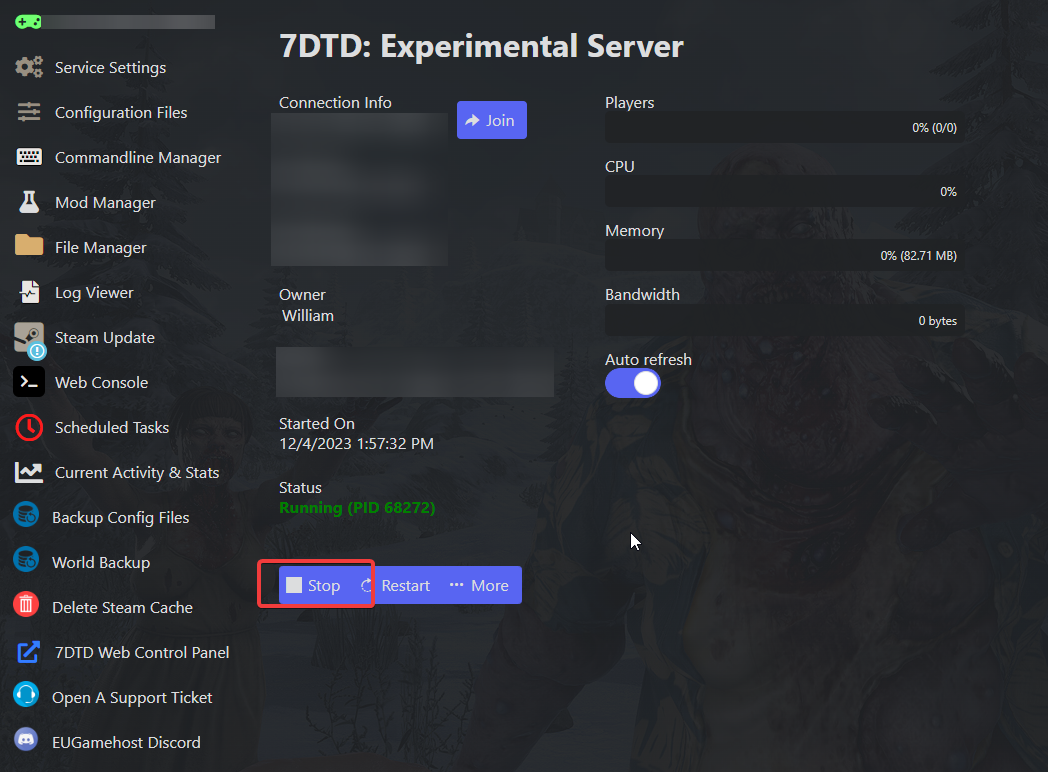
Click on the ‘Stop’ Button
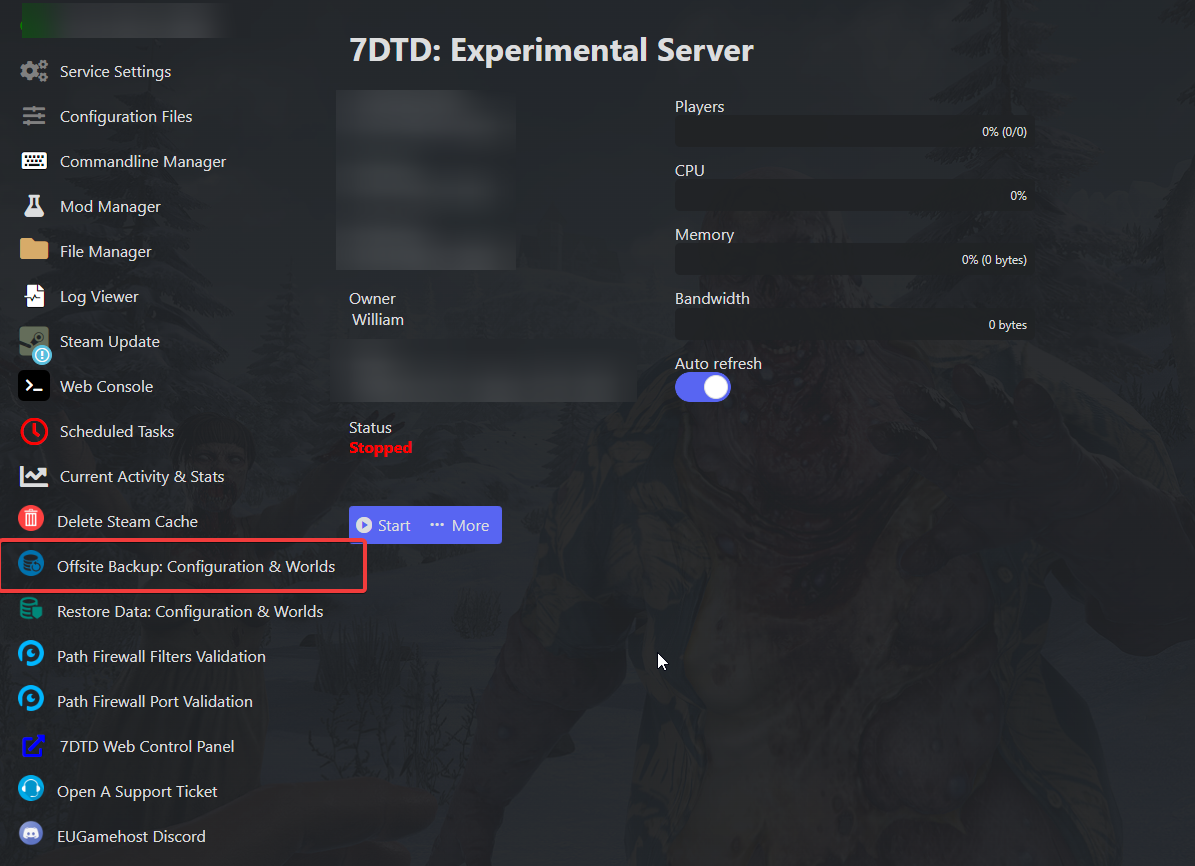
Next, Click on the "Offsite Backup: Configuration & Worlds"
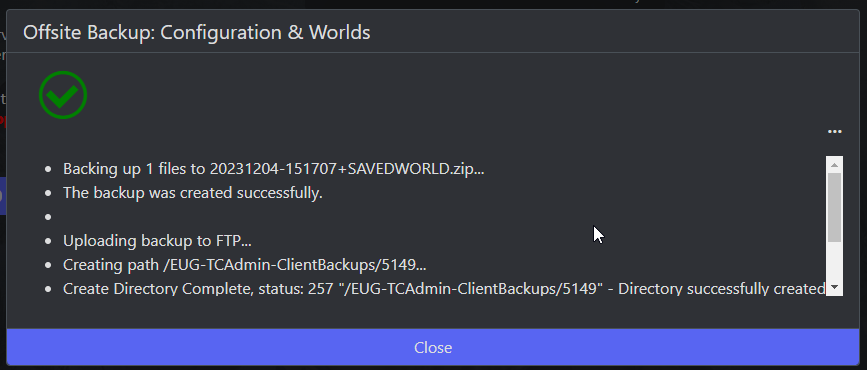
Once this says "The backup was created successfully." you can close this screen.
Now click back onto your server, and then press the ‘Start’ Button

How to Schedule a Backup for your 7 Days to Die server
Login to the Control Panel and login with your credentials.
Click on ‘Game Services’
Click on your '7 Days to Die Service'
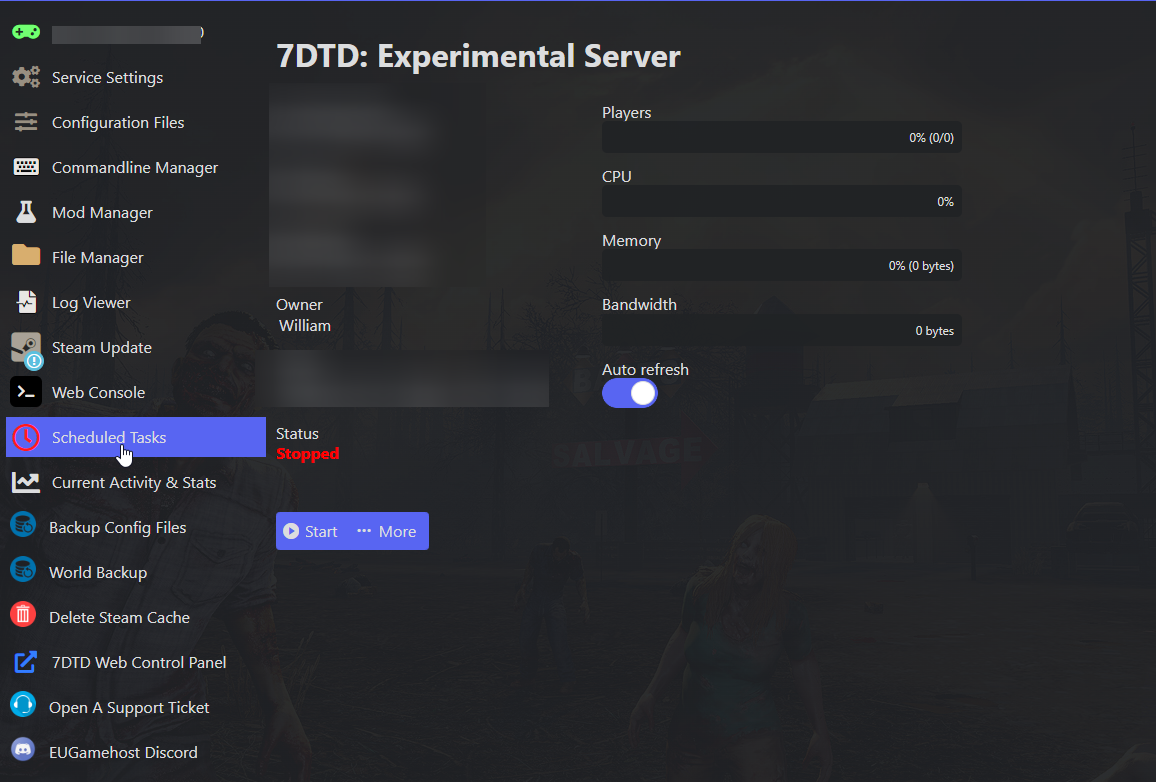
Click on "Scheduled Tasks"
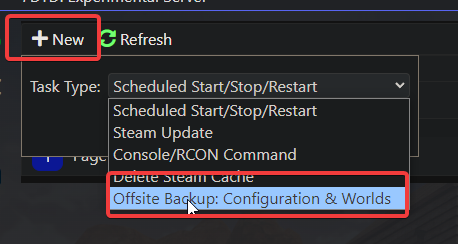
Click on "New" then Select "Offsite Backup: Configuration & Worlds"
input the Name of the tasks, the Type (One time, Daily, Weekly or Monthly) and the day the task will start.
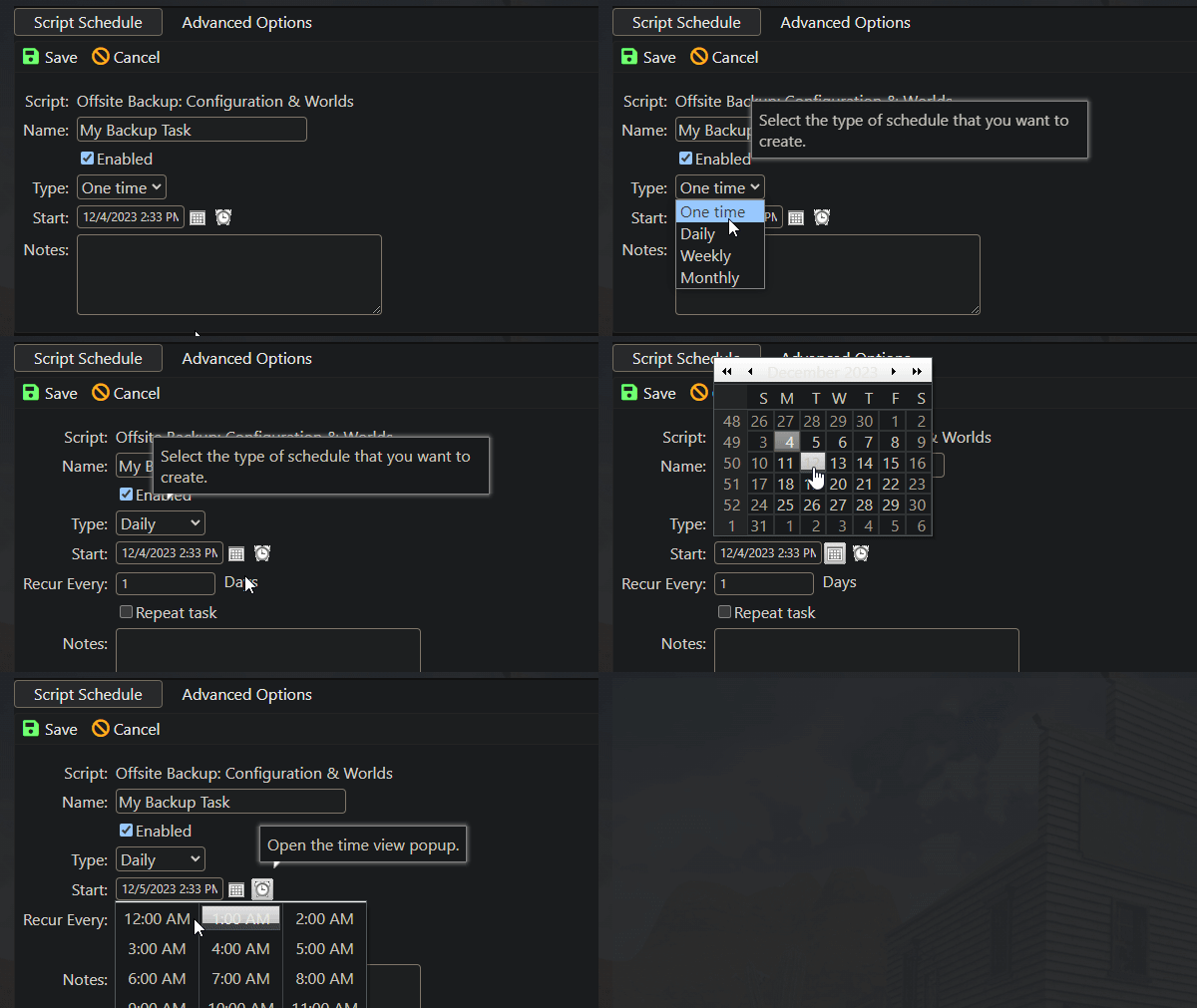
Then hit "Save" (as shown above)
You should now see the task in the "Scheduled Tasks" Menu

And done, you have now configured a task to automatically perform a backup whenever you need it to!